# Formater un support de données

# Formatage simple via l'interface graphique de Windows

# Via l'explorateur Windows

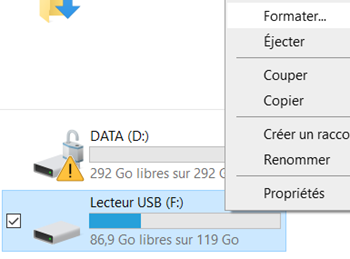
- Ouvrir un explorateur Windows et se rendre dans "Ce PC" 
    - - Raccourcis : Touche Windows + E
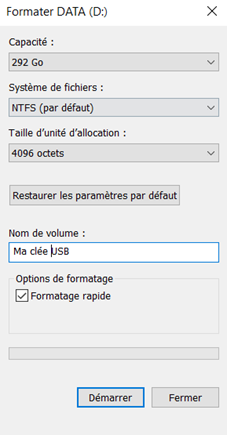
- Su votre support de données -&gt; Clic droit "Formater"

![](https://docs.msid.eu/uploads/images/gallery/2023-05/embedded-image-blkeahpc.png)

- Choisir le système de fichier 
    - NTFS pour Windows
- Le nom du Volume 
    - Nom de votre support de données
- Options de formatage 
    - Cocher la case "Formatage rapide" 
        - !! Le formatage rapide, n'est pas sécuriser il est possible de retrouver des données par la suite. !!
- Finir par "Démarrer"
![](https://docs.msid.eu/uploads/images/gallery/2023-05/embedded-image-sy0zh46r.png)

# Via le gestionnaire de disque

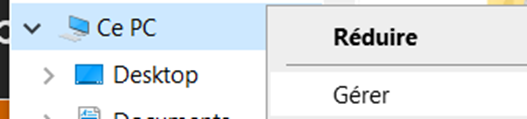
- Sur ce PC -&gt; Clic droit "Gérer"

![](https://docs.msid.eu/uploads/images/gallery/2023-05/embedded-image-ivsqn3oa.png)

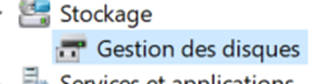
- Dans le menu de gauche aller dans "Gestion des disque"
![](https://docs.msid.eu/uploads/images/gallery/2023-05/embedded-image-o3bkixsv.png)

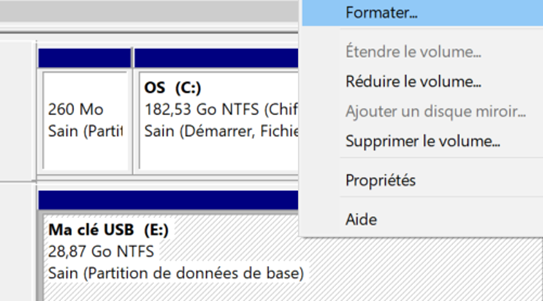
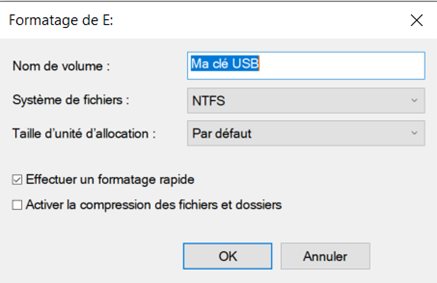
- Sur votre support de données -&gt; Clic droit sur le volume -&gt; "Formater"

![](https://docs.msid.eu/uploads/images/gallery/2023-05/embedded-image-nndixykb.png)

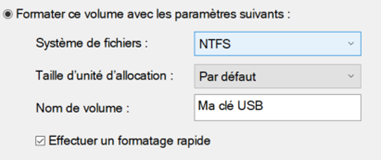
- Choisir le nom du volume
- Choisir le système de fichier
- Cocher "Effectuer un formatage rapide"
- Validé par "OK"
![](https://docs.msid.eu/uploads/images/gallery/2023-05/embedded-image-wslfafex.png)

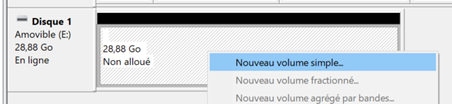
- Créer la nouvelle partition, d<span style="font-size: 11.0pt; font-family: 'Century Gothic',sans-serif; mso-fareast-font-family: Calibri; mso-fareast-theme-font: minor-latin; mso-bidi-font-family: Arial; mso-bidi-theme-font: minor-bidi; mso-ansi-language: FR; mso-fareast-language: EN-US; mso-bidi-language: AR-SA;">ans la liste des disques, vous devez retrouver votre disque, sans volume (Contour noir)</span>
- <span style="font-size: 11.0pt; font-family: 'Century Gothic',sans-serif; mso-fareast-font-family: Calibri; mso-fareast-theme-font: minor-latin; mso-bidi-font-family: Arial; mso-bidi-theme-font: minor-bidi; mso-ansi-language: FR; mso-fareast-language: EN-US; mso-bidi-language: AR-SA;">Faire un clic droit -&gt; "Nouveau volume simple"</span>

<span style="font-size: 11.0pt; font-family: 'Century Gothic',sans-serif; mso-fareast-font-family: Calibri; mso-fareast-theme-font: minor-latin; mso-bidi-font-family: Arial; mso-bidi-theme-font: minor-bidi; mso-ansi-language: FR; mso-fareast-language: EN-US; mso-bidi-language: AR-SA;">![](https://docs.msid.eu/uploads/images/gallery/2023-05/embedded-image-pxrjz9qo.png)</span>

- <span style="font-size: 11.0pt; font-family: 'Century Gothic',sans-serif; mso-fareast-font-family: Calibri; mso-fareast-theme-font: minor-latin; mso-bidi-font-family: Arial; mso-bidi-theme-font: minor-bidi; mso-ansi-language: FR; mso-fareast-language: EN-US; mso-bidi-language: AR-SA;">"Suivant"</span>
- <span style="font-size: 11.0pt; font-family: 'Century Gothic',sans-serif; mso-fareast-font-family: Calibri; mso-fareast-theme-font: minor-latin; mso-bidi-font-family: Arial; mso-bidi-theme-font: minor-bidi; mso-ansi-language: FR; mso-fareast-language: EN-US; mso-bidi-language: AR-SA;">Choisir la taille (Par défaut l'ensemble du support sera utilisé)</span>

<span style="font-size: 11.0pt; font-family: 'Century Gothic',sans-serif; mso-fareast-font-family: Calibri; mso-fareast-theme-font: minor-latin; mso-bidi-font-family: Arial; mso-bidi-theme-font: minor-bidi; mso-ansi-language: FR; mso-fareast-language: EN-US; mso-bidi-language: AR-SA;">![](https://docs.msid.eu/uploads/images/gallery/2023-05/embedded-image-crcl8t1y.png)</span>

- <span style="font-size: 11.0pt; font-family: 'Century Gothic',sans-serif; mso-fareast-font-family: Calibri; mso-fareast-theme-font: minor-latin; mso-bidi-font-family: Arial; mso-bidi-theme-font: minor-bidi; mso-ansi-language: FR; mso-fareast-language: EN-US; mso-bidi-language: AR-SA;">Choisir la lettre de lecteur</span>

<span style="font-size: 11.0pt; font-family: 'Century Gothic',sans-serif; mso-fareast-font-family: Calibri; mso-fareast-theme-font: minor-latin; mso-bidi-font-family: Arial; mso-bidi-theme-font: minor-bidi; mso-ansi-language: FR; mso-fareast-language: EN-US; mso-bidi-language: AR-SA;">![](https://docs.msid.eu/uploads/images/gallery/2023-05/embedded-image-bcqaigbm.png)</span>

- <span style="font-size: 11.0pt; font-family: 'Century Gothic',sans-serif; mso-fareast-font-family: Calibri; mso-fareast-theme-font: minor-latin; mso-bidi-font-family: Arial; mso-bidi-theme-font: minor-bidi; mso-ansi-language: FR; mso-fareast-language: EN-US; mso-bidi-language: AR-SA;">Choisir le système de fichier</span>
- <span style="font-size: 11.0pt; font-family: 'Century Gothic',sans-serif; mso-fareast-font-family: Calibri; mso-fareast-theme-font: minor-latin; mso-bidi-font-family: Arial; mso-bidi-theme-font: minor-bidi; mso-ansi-language: FR; mso-fareast-language: EN-US; mso-bidi-language: AR-SA;">Choisir le nom du volume</span>
- <span style="font-size: 11.0pt; font-family: 'Century Gothic',sans-serif; mso-fareast-font-family: Calibri; mso-fareast-theme-font: minor-latin; mso-bidi-font-family: Arial; mso-bidi-theme-font: minor-bidi; mso-ansi-language: FR; mso-fareast-language: EN-US; mso-bidi-language: AR-SA;">Cocher effectuer un formatage rapide</span>
- <span style="font-size: 11.0pt; font-family: 'Century Gothic',sans-serif; mso-fareast-font-family: Calibri; mso-fareast-theme-font: minor-latin; mso-bidi-font-family: Arial; mso-bidi-theme-font: minor-bidi; mso-ansi-language: FR; mso-fareast-language: EN-US; mso-bidi-language: AR-SA;">Finir par "Terminer"</span>

<span style="font-size: 11.0pt; font-family: 'Century Gothic',sans-serif; mso-fareast-font-family: Calibri; mso-fareast-theme-font: minor-latin; mso-bidi-font-family: Arial; mso-bidi-theme-font: minor-bidi; mso-ansi-language: FR; mso-fareast-language: EN-US; mso-bidi-language: AR-SA;">![](https://docs.msid.eu/uploads/images/gallery/2023-05/embedded-image-webbedy1.png)</span>

# Formatage avancé sous Windows via diskpart

# Suppression des partitions

Attention supprimer les partitions via diskpart supprime l'ensemble des partition du support.

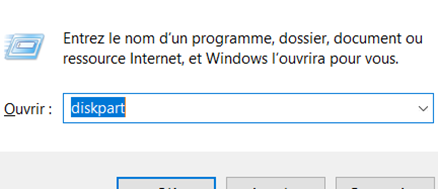
- Exécuter l'utilitaire "Diskpart" 
    - - Touche Windows + R
        - Entrer "diskpart"
![](https://docs.msid.eu/uploads/images/gallery/2023-05/embedded-image-9sd5jbvp.png)

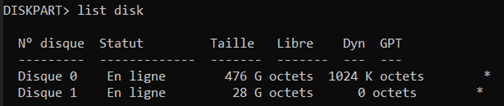
- Exécuter la commande "list disk" 
    - Pour lister vos disque
![](https://docs.msid.eu/uploads/images/gallery/2023-05/embedded-image-koeijm1k.png)

- Exécuter a commande "sel disk X" 
    - Pour sélectionner votre disque que vous souhaitez formater
    - X = numéro du disque

![](https://docs.msid.eu/uploads/images/gallery/2023-05/embedded-image-sxmepv8s.png)

- Exécuter la commande "clean" 
    - <span style="font-size: 11.0pt; font-family: 'Century Gothic',sans-serif; mso-fareast-font-family: Calibri; mso-fareast-theme-font: minor-latin; mso-bidi-font-family: Arial; mso-bidi-theme-font: minor-bidi; mso-ansi-language: FR; mso-fareast-language: EN-US; mso-bidi-language: AR-SA;">!! Cette commande va supprimer toutes les partitions, attention de bien sélectionner le bon disque !!</span>

<span style="font-size: 11.0pt; font-family: 'Century Gothic',sans-serif; mso-fareast-font-family: Calibri; mso-fareast-theme-font: minor-latin; mso-bidi-font-family: Arial; mso-bidi-theme-font: minor-bidi; mso-ansi-language: FR; mso-fareast-language: EN-US; mso-bidi-language: AR-SA;">![](https://docs.msid.eu/uploads/images/gallery/2023-05/embedded-image-hk4x3dqe.png)</span>

# Créer une nouvelle partition et la formater

- Exécuter l'utilitaire "Diskpart" 
    - - Touche Windows + R
        - Entrer "diskpart"

![](https://docs.msid.eu/uploads/images/gallery/2023-05/embedded-image-9sd5jbvp.png)

- Exécuter la commande "list disk" 
    - Pour lister vos disque

![](https://docs.msid.eu/uploads/images/gallery/2023-05/embedded-image-koeijm1k.png)

- Exécuter a commande "sel disk X" 
    - Pour sélectionner votre disque que vous souhaitez formater
    - X = numéro du disque

![](https://docs.msid.eu/uploads/images/gallery/2023-05/embedded-image-sxmepv8s.png)

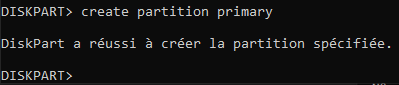
- Exécuter la commande "create partition primary" 
    - Pour crée une partition primaire sur votre disque
    - Cette commande crée une seul partition utilisant la taille maximal de votre support

[![image.png](https://docs.msid.eu/uploads/images/gallery/2023-05/scaled-1680-/pjlimage.png)](https://docs.msid.eu/uploads/images/gallery/2023-05/pjlimage.png)
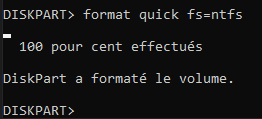
- Exécuter la commande "format quick fs=ntfs" 
    - Pour formater la partition en NTFS

[![image.png](https://docs.msid.eu/uploads/images/gallery/2023-05/scaled-1680-/DTnimage.png)](https://docs.msid.eu/uploads/images/gallery/2023-05/DTnimage.png)
# Formatage sécuriser d'un support

# Via Eraser

Site officiel de Eraser : <span style="font-size: 11.0pt; font-family: 'Century Gothic',sans-serif; mso-fareast-font-family: Calibri; mso-fareast-theme-font: minor-latin; mso-bidi-font-family: Arial; mso-bidi-theme-font: minor-bidi; mso-ansi-language: FR; mso-fareast-language: EN-US; mso-bidi-language: AR-SA;">[https://eraser.heidi.ie/download/](https://eraser.heidi.ie/download/)</span>

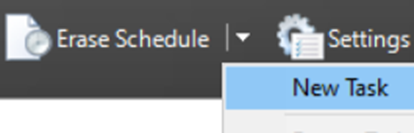
- <span style="font-size: 11.0pt; font-family: 'Century Gothic',sans-serif; mso-fareast-font-family: Calibri; mso-fareast-theme-font: minor-latin; mso-bidi-font-family: Arial; mso-bidi-theme-font: minor-bidi; mso-ansi-language: FR; mso-fareast-language: EN-US; mso-bidi-language: AR-SA;">Lancer Eraser -&gt; Dans le menu choisir -&gt; Erase schedure -&gt; "New Task"</span>

<span style="font-size: 11.0pt; font-family: 'Century Gothic',sans-serif; mso-fareast-font-family: Calibri; mso-fareast-theme-font: minor-latin; mso-bidi-font-family: Arial; mso-bidi-theme-font: minor-bidi; mso-ansi-language: FR; mso-fareast-language: EN-US; mso-bidi-language: AR-SA;">![](https://docs.msid.eu/uploads/images/gallery/2023-05/embedded-image-nlrapbod.png)</span>

- <span style="font-family: Century Gothic, sans-serif;"><span style="font-size: 14.6667px;">Choisir "Add Data"</span></span>

![](https://docs.msid.eu/uploads/images/gallery/2023-05/embedded-image-9yoqjtjp.png)

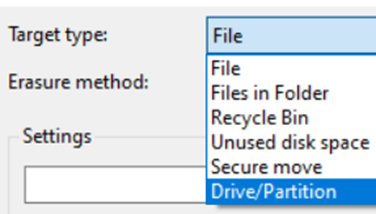
- <span style="font-family: Century Gothic, sans-serif;"><span style="font-size: 14.6667px;">Dans "target type" Choisir "Drive/Partition"</span></span>

![](https://docs.msid.eu/uploads/images/gallery/2023-05/embedded-image-iofpbidj.png)

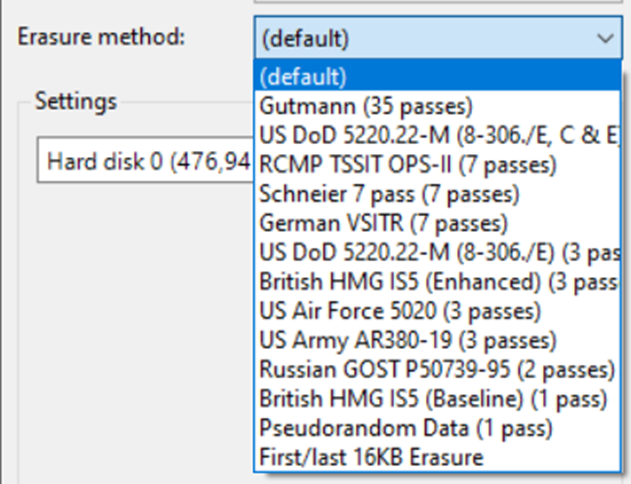
- <span style="font-family: Century Gothic, sans-serif;">Dans "Erasure méthode" Choisir la méthode de formatage avancé</span>
    - <span style="font-family: Century Gothic, sans-serif;">Plus le nombre de "Passes" sera élevé plus les données seront compliquées à retrouver. Voir impossible.</span>

![](https://docs.msid.eu/uploads/images/gallery/2023-05/embedded-image-tzxevkpy.png)

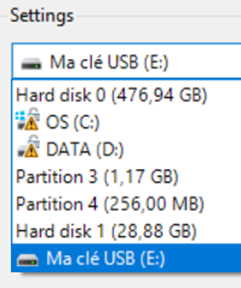
- <span style="font-family: Century Gothic, sans-serif;">Dans la liste, choisir son support de donnée à formater;</span>
    - <span style="font-family: Century Gothic, sans-serif;">Validé par "OK" puis "OK"</span>

![](https://docs.msid.eu/uploads/images/gallery/2023-05/embedded-image-hkaihrdu.png)

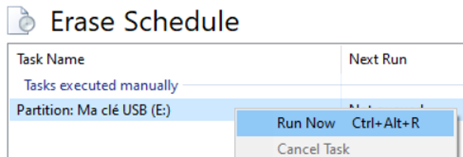
- <span style="font-family: Century Gothic, sans-serif;">Dans le menu principale de Eraser</span>
    - <span style="font-family: Century Gothic, sans-serif;">Sélectionner votre tâche -&gt; Clic droit dessus -&gt; "Run Now"</span>

![](https://docs.msid.eu/uploads/images/gallery/2023-05/embedded-image-o49srn9r.png)

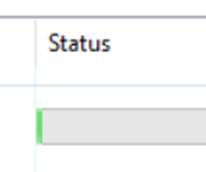
- <span style="font-family: Century Gothic, sans-serif;">La tâche est en cours d'exécution<span style="font-size: 11.0pt; font-family: 'Century Gothic',sans-serif; mso-fareast-font-family: Calibri; mso-fareast-theme-font: minor-latin; mso-bidi-font-family: Arial; mso-bidi-theme-font: minor-bidi; mso-ansi-language: FR; mso-fareast-language: EN-US; mso-bidi-language: AR-SA;">. L’avancement est noté à droite de celle-ci.</span></span>

![](https://docs.msid.eu/uploads/images/gallery/2023-05/embedded-image-uxbh1iva.png)

- <span style="font-family: Century Gothic, sans-serif;">A la fin de l'opération, vous pouvez formater votre support dans un format classique.</span>